
It's lunchtime and every table is full. Table 4 has been waving for a menu for five minutes. Table 9 wants to add drinks. Someone wrote "no onions" on the wrong order. And there's a queue at the till of people who just want to pay and leave.
Your team isn't slow. There just aren't enough hands for the walking back and forth. QR code table ordering fixes that: guests scan a code on the table, order from your menu on their own phone, and the order goes straight to your team.
What QR code table ordering changes
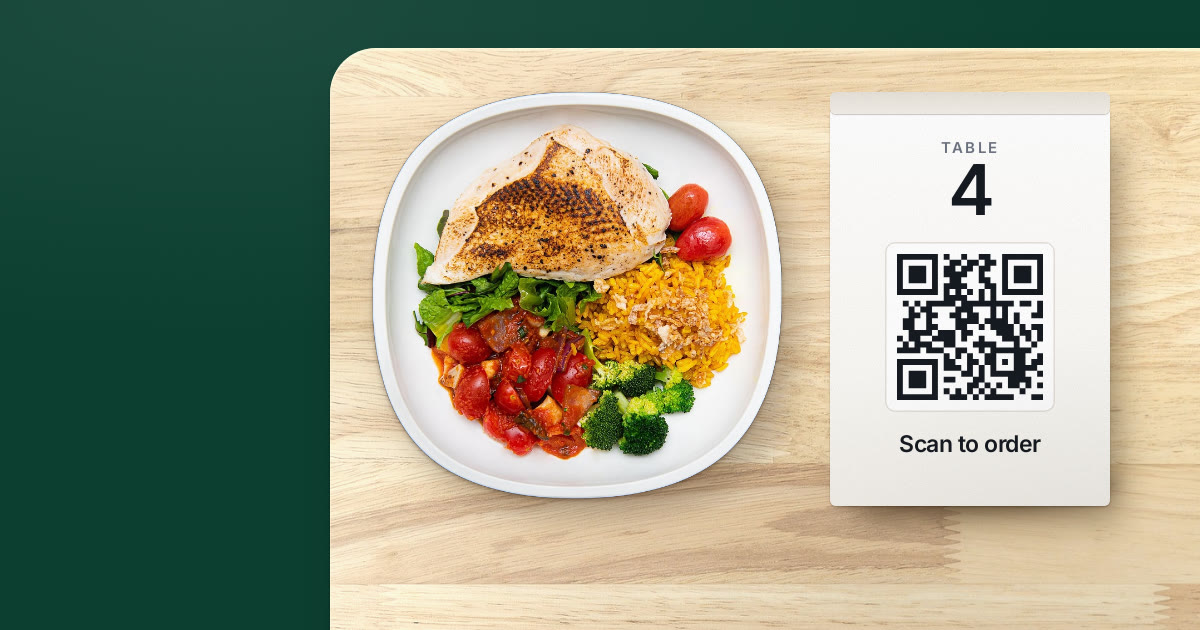
Every table gets a card with your QR code. A guest scans it with their phone camera, the menu opens, they pick their food and options like "no onions", and send the order. No app to download.
The order goes straight to your team. Nobody had to walk over, take it down, and walk back.
- Guests order when they're ready, not when a waiter is free.
- Orders arrive exactly as the guest wrote them.
- Second rounds are easy. Another drink is one more scan.
- Your staff spend their time cooking and serving, not taking orders.
How it works with Queek
Queek QR ordering uses the same menu as your counter and your website. You set up your dishes, prices and options once, and the QR menu shows them.
Guests pay at checkout, on the same phone:
- Online: they pay on their phone as they order, and the order is marked paid when the payment goes through. This suits busy cafes and quick-service spots.
- Offline: if you turn on an offline payment method, guests can choose it instead and settle with your staff.
Every QR order lands in your order list marked In-Store, next to your counter and online orders. Take walk-in orders on Queek POS at the same time, from the same menu.
Get it ready before your next rush
- Set up your menu. Add dishes, prices, sizes and options like extra protein or no onions.
- Turn on QR ordering and choose which payment methods guests can use.
- Print your QR code and put a copy on every table, where guests can see it.
- Test every card. Scan it, place a test order, and check it reaches your team.
- Brief your staff. Decide who watches incoming orders, and keep helping guests who'd rather order the old way.
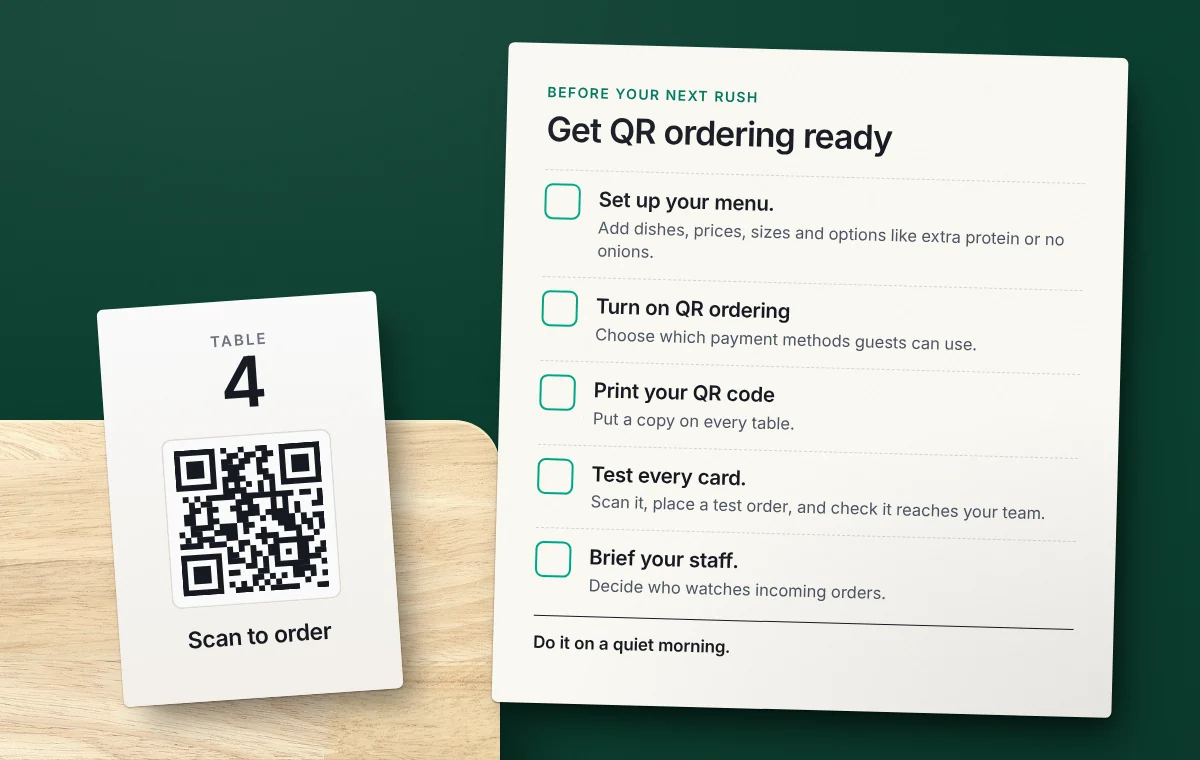
Do it on a quiet morning, and your next busy lunch runs smoother.
A few tips from the floor
- Number every card. A big table number on each card lets guests tell staff where they're sitting when food goes out.
- Keep the code clean and well-lit. A crumpled or glare-covered code is a code nobody scans.
- Put a line on the card, like "Scan to order and pay", so guests know what to do.
- Mark sold-out items in Queek as soon as they run out, so nobody orders something you can't make.
Which plan you need
QR ordering comes with the Starter plan, the plan built for restaurants, cafes and food spots, along with POS. It's also on Growth, Scale and Enterprise.
There's no Queek commission on QR orders. Online payments carry only the payment provider's normal fee.
Fewer trips, more tables served
Your guests already have their phones on the table. Let them order with them.
Start on Queek and have QR ordering ready for your next service.
Frequently asked questions
Do guests need to download an app to order?
No. Guests scan the code with their phone camera and the menu opens in the browser.
Can guests pay from the table?
Yes. Guests can pay online on their phone as they place the order. If you turn on an offline payment method, they can choose it instead and settle with your staff.
Does the menu update when something sells out?
Yes. The QR menu comes from the same product list as your POS and website, so changes show everywhere.
Which plan includes QR ordering?
In-store QR ordering is on Starter, Growth, Scale and Enterprise.