
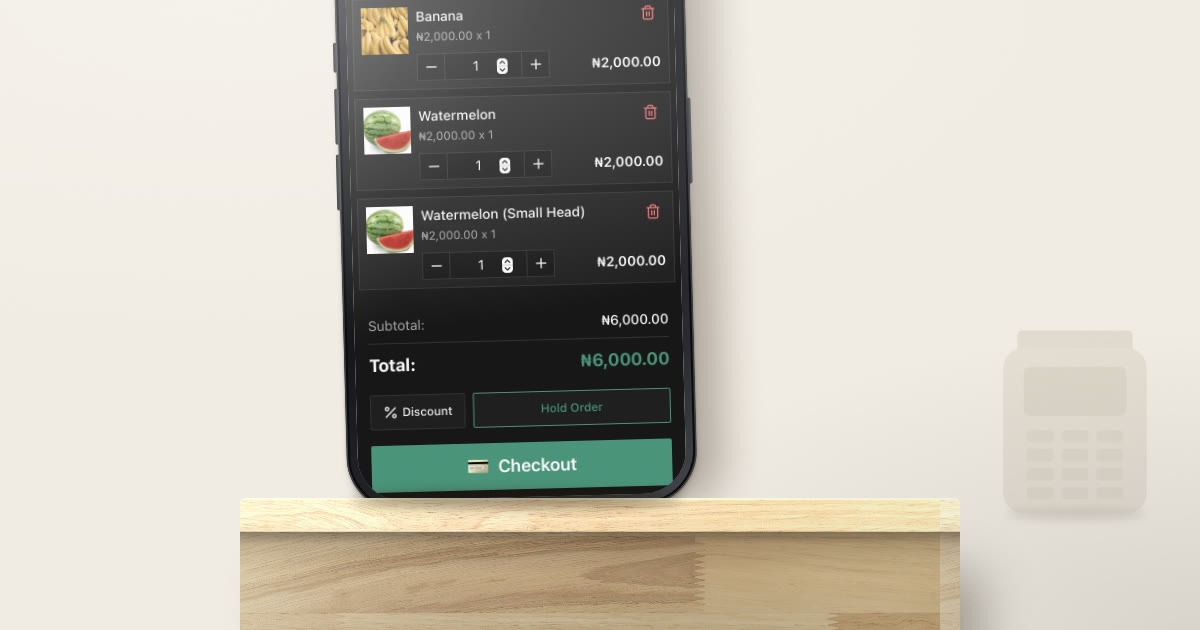
You want to stop writing sales in a notebook. So you look at POS systems, and every one seems to start with "buy this machine": a terminal, a till, a receipt printer, a contract.
For a small shop, kitchen or kiosk, that's a lot of money before you've sold a thing.
A POS without hardware is possible: the device you need is probably already in your pocket.
What a POS without hardware still has to do
Forget the hardware for a second. A POS does three jobs:
- Shows your products and prices, so you're not quoting from memory.
- Records every sale, so you know what you sold today.
- Keeps your stock right, so you know what's left.
None of that needs special hardware. It needs good software on a screen.
Queek POS runs on what you already own
Queek POS works:
- In the browser on a phone, tablet or laptop,
- As an Android app from Google Play,
- As a desktop app for your counter computer.
Open it, tap the items, record the payment, done. The sale is saved, tracked stock goes down, and the order lands in your order list marked POS.
Which screen should you use?
- Phone: fits a market stall, a small kiosk, or selling on the move.
- Tablet: a bigger screen for a busy counter or a food spot with a long menu.
- Laptop: use the one already at your counter when you want a full view.
Start with what you have. You can add another device later and log in there too.
Cash and transfers, handled
Queek POS records cash and bank transfer sales. For transfers, check the money in your own bank app before the customer leaves, the same habit you have today. Every sale is written down with how it was paid, so closing up at the end of the day is a count, not a guess.
One shop, one stock count
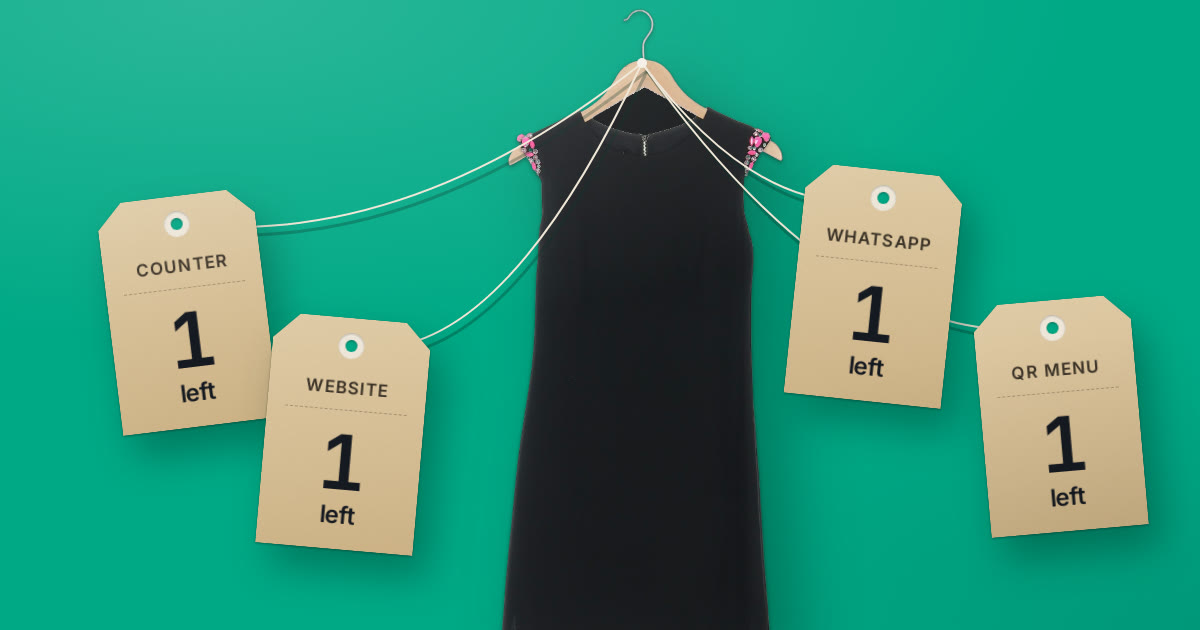
Your POS sells from the same product catalogue as your Queek website and your chats. With stock tracking on, an item sold at the counter comes off your online stock too, so you stop updating three lists.
Built for a team
- Staff logins: give everyone who sells their own login, so you know who made which sale.
- Roles and permissions: decide what each person can see and do.
- Barcodes: generate barcodes for your products from Queek.
Set it up today
- Create your Queek store at usequeek.com.
- Add your products with prices, sizes and stock.
- Choose Starter or above to switch on POS (compare plans).
- Open POS on your phone, tablet or laptop and make your first sale.
There's no Queek commission on counter sales.
Your till is already in your pocket
You don't need to buy a machine to take payments at the counter. You need your products, your phone, and software that records every sale.
Start on Queek and make your first POS sale today.
Frequently asked questions
Can I use my phone as a POS?
Yes. Queek POS runs in the browser on a phone, tablet or laptop, as an Android app on Google Play, and as a desktop app.
How do I take payment with Queek POS?
Queek POS records cash and bank transfer sales. Check transfers in your own bank app before the customer leaves, the same as today.
Can my staff use the POS?
Yes. Give each person their own login, and use roles and permissions to control what they can do.
Which plan includes POS?
POS is on Starter, Growth, Scale and Enterprise.